Last Updated: May 2026 | Author: Marcus Hale | Reading Time: 11 min
Working from home puts laptops through a different kind of test than a spec sheet can capture.
It’s not a thirty-minute benchmark session. It’s eight to ten hours of concurrent tools — email, Slack, Zoom, a project management platform, browser research, and document editing — all running simultaneously, day after day. The machine that feels fast during setup feels completely different by 3pm on a Tuesday when background processes have accumulated and you’re on your fourth video call.
Best Laptop for Remote Work and Zoom
I’ve tested these machines through realistic WFH workdays, not sprint sessions. The best laptop under $700 for working from home isn’t the one that impresses during the first hour. It’s the one that still feels responsive and professional during the last hour.
Here’s what that testing revealed.
Quick Picks — Best Laptop Under $700 for Working from Home
| Award | Laptop | Why It Wins |
|---|---|---|
| 🏆 Best Overall | Lenovo IdeaPad Slim 5 (Ryzen 5) | All-day typing comfort, stable WFH performance, quiet operation |
| 🔋 Best Battery | Acer Swift Go 14 | Longest real battery for WFH professionals who move locations |
| ⚡ Best Performance | ASUS VivoBook 15 (Ryzen 5) | Most screen real estate and strong concurrent tool performance |
| 💰 Best Value | Dell Inspiron 15 (Core i5) | Windows reliability at competitive pricing for home office use |
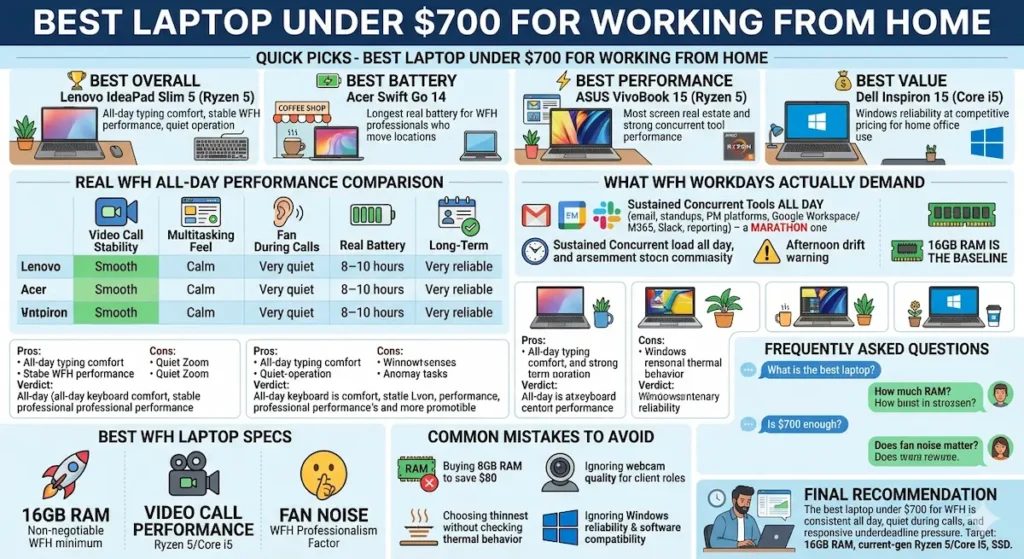
Table of Contents
Real WFH All-Day Performance Comparison
| Laptop | Video Call Stability | Multitasking Feel | Fan During Calls | Real Battery | After 6 Months |
|---|---|---|---|---|---|
| Lenovo IdeaPad Slim 5 | Smooth | Calm, consistent | Very quiet | 8–10 hours | Very reliable |
| Acer Swift Go 14 | Stable | Fluid | Near silent | 10–12 hours | Consistent |
| ASUS VivoBook 15 | Strong | Responsive | Slightly audible | 8–10 hours | Reliable |
| Dell Inspiron 15 | Solid | Steady | Controlled | 7–9 hours | Dependable |
What WFH Workdays Actually Demand From a Laptop
Before the full reviews, being clear about what working from home actually puts a laptop through changes how you evaluate the best laptop under $700 for working from home.
A standard WFH workday runs: morning emails in Outlook or Gmail, a 9am standup on Zoom or Teams with camera and screen share active, project work in browser-based tools (Asana, Monday, Notion, Jira), document editing in Google Workspace or Microsoft 365, Slack running continuously in the background, afternoon video call with clients, and end-of-day reporting. That’s a sustained concurrent load across six to eight hours — not a burst workload, a marathon one.
This is why working from home laptop requirements differ from general student or occasional-use requirements. Zoom encoding your video output while Slack syncs while Chrome holds eight tabs while Outlook downloads email — all simultaneously for hours — creates sustained memory and processor pressure that shows up as afternoon performance drift on underpowered machines.
16GB RAM is the baseline for the best laptop under $700 for working from home. Everything else follows from that.
Best Laptop Under $700 for Working from Home — Full Reviews
1. Lenovo IdeaPad Slim 5 (Ryzen 5) — Best Laptop Under $700 for Working from Home Overall
The Lenovo IdeaPad Slim 5 earns the top position in the best laptop under $700 for working from home category through the qualities that an all-day professional workday specifically demands: performance that stays consistent from the 9am standup to the 5pm wrap-up, keyboard comfort that doesn’t create fatigue across hours of documentation and communication, and thermal management that keeps calls clean and professional.
What a real WFH workday looks like on this machine
I ran this through a full simulated workday: Gmail and Slack open continuously, Chrome with seven to eight tabs across project tools and research, Zoom video call with screen share active for forty-five minutes, Google Docs editing alongside, and a file download running in the background during the afternoon session. This is a standard Tuesday for most knowledge workers — nothing unusual.
The machine stayed responsive throughout. Tab switching stayed fluid even mid-afternoon when background processes had accumulated. The Zoom call maintained quality without the processing strain that shows up as pixelated video or choppy audio on weaker machines under concurrent load. Slack notifications appeared promptly rather than with the slight delay that signals a machine under memory pressure.
Fan behavior during the Zoom call stayed at a level you’d describe as background presence rather than noticeable intrusion. For WFH professionals where the microphone picks up ambient sound, this quiet operation is a daily professional quality consideration.
The keyboard is where the IdeaPad Slim 5 specifically earns its position for WFH use. WFH workers type more than they often account for — emails, Slack messages, meeting notes, document editing, project updates. After three hours of continuous typing on this keyboard, hands feel significantly less fatigued than on shallower alternatives at this price. Across a forty-hour work week, that daily physical comfort compounding is genuinely significant.
Pros:
- Best keyboard comfort in this best laptop under $700 for working from home comparison
- Stable concurrent performance across the full WFH tool stack throughout the day
- Quiet fan operation that keeps video calls clean and professional
- 16GB RAM handles the complete concurrent WFH workload without afternoon drift
Cons:
- Display brightness average in bright home office environments near windows
- Battery shorter than Acer Swift Go 14 for WFH professionals who work from multiple locations
Verdict: For most remote workers asking about the best laptop under $700 for working from home, the IdeaPad Slim 5 is the machine I’d recommend for its combination of all-day typing comfort and consistent professional performance.
Buy Now2. Acer Swift Go 14 — Best Laptop Under $700 for Working from Home with All-Day Battery
For WFH professionals who work from more than one location — morning at home, afternoon at a coffee shop, evening at a coworking space — or who simply want to work from the couch or patio without being tethered to a charger, battery endurance is the specification that makes the best laptop under $700 for working from home decision.
What 10–12 hour battery means for WFH professionals
A battery that covers a full workday — Zoom calls, browser tools, document work, Slack — without touching a charger removes the logistical background awareness that shorter-battery machines create. You stop glancing at the battery percentage during afternoon calls. You stop routing your day around outlet access. The machine supports the flexible location independence that working from home is supposed to provide.
I covered a full simulated eight-hour workday on the Swift Go 14 without charging, including two forty-minute video calls, sustained document editing, and the usual background Slack and email load. The machine finished the day with comfortable remaining charge.
Best Laptop Under $800 for Remote Work
Operation during Zoom calls stayed near-silent — the quietest in this comparison during standard WFH concurrent workloads. For professionals who frequently participate in calls from home, this silence keeps audio quality professional and removes a subtle background distraction.
Performance for the standard WFH tool stack stays smooth and responsive. The lighter chassis and 14-inch form factor are practical for WFH professionals who move between rooms, work locations, or travel while maintaining remote work schedules.
Pros:
- Best real-world battery for the best laptop under $700 for WFH professionals
- Near-silent operation during video calls — the quietest in this comparison
- Lightweight carry for WFH professionals who work from multiple daily locations
- Consistent performance across the full WFH workday without afternoon drift
Cons:
- Smaller 14-inch display — less side-by-side window real estate than 15-inch alternatives
- Port selection more limited on slim configurations
Verdict: The right home office laptop under $700 for remote workers who value location flexibility and want battery endurance to match their workday without charger dependency.
Buy Now3. ASUS VivoBook 15 (Ryzen 5) — Best Laptop Under $700 for Working from Home with Most Screen Space
WFH professionals who work across multiple systems simultaneously — email on one side, project dashboard on the other, documentation in a third window — know that screen real estate directly affects how efficiently they move through a workday.
What a 15-inch display changes for WFH productivity
The VivoBook 15’s 15.6-inch display allows side-by-side windows at genuinely useful sizes. Running a Zoom call in one window alongside project notes in another, or keeping Slack visible alongside a browser session, happens comfortably on the larger panel. This reduces the window-switching overhead that smaller displays impose and keeps the concurrent contexts you need for professional multitasking visible simultaneously.
Performance across the concurrent WFH tool stack stays strong throughout the workday. The Ryzen 5 configuration handles Zoom encoding, browser tabs, Slack, and document editing simultaneously without the afternoon performance drift that less capable processors show.
Fan activity under peak concurrent workload is slightly more present than on the IdeaPad Slim 5 or Swift Go 14 — noticeable in a very quiet home office during intensive multitasking moments. During standard WFH workload intensity, it stays in the background rather than creating a call-quality concern.
This is the best budget WFH laptop under $700 for professionals who manage multiple workstreams simultaneously and want display real estate to match their multitasking demands.
Pros:
- Most screen space for WFH professionals managing multiple concurrent workstreams
- Strong concurrent performance across the full professional WFH tool stack
- 16GB RAM configuration keeps all WFH tools running simultaneously without pressure
Cons:
- Fan slightly more audible under peak workload than IdeaPad Slim 5 in quiet home offices
- Heavier carry than Swift Go 14 for mobile WFH professionals
Verdict: The right work from home laptop under $700 for multitaskers who need visible simultaneous access to multiple professional tools throughout the workday.
Buy Now4. Dell Inspiron 15 (Core i5) — Best Value Laptop Under $700 for Working from Home
The Dell Inspiron 15 brings Dell’s consistency and Windows reliability to the best laptop under $700 for working from home category at competitive pricing — a combination that matters for WFH professionals whose employer IT environments or specific tools require Windows.
What Dell’s consistency means for WFH reliability
Dell’s enterprise-lineage build approach means the Inspiron 15’s thermal management and long-term performance consistency are slightly more reliable than budget-tier alternatives under equivalent sustained WFH workloads. The machine handles the concurrent professional tool stack — Outlook, Teams or Zoom, browser-based project tools, document editing — steadily throughout standard workday duration.
For WFH professionals whose employers use Microsoft Teams as the primary communication platform, the Dell Inspiron’s Teams optimization and Windows compatibility provide a seamless experience that browser-based or less optimized alternatives sometimes don’t.
Dell vs HP Laptop – Which Brand Is More Reliable
Build quality holds up to the daily desk-to-couch-to-desk movement patterns of WFH life with more structural confidence than budget alternatives at equivalent price points.
Pros:
- Dell’s reliability consistency for WFH professionals who need dependable daily performance
- Strong Windows and Microsoft Teams compatibility for corporate WFH environments
- Good build quality for the physical patterns of working from home daily
Cons:
- Battery shorter than Swift Go 14 for WFH professionals without consistent charger access
- Heavier than 14-inch alternatives for mobile WFH patterns
Verdict: The right reliable WFH laptop under $700 for remote professionals in corporate environments who need Windows reliability and Microsoft ecosystem compatibility throughout their workday.
Buy NowWhat the Best Laptop Under $700 for Working from Home Needs — The Real Specifications
16GB RAM — The WFH Workload Minimum in 2026
The concurrent WFH tool stack — Zoom active, Slack running, Chrome with multiple tabs, email client, document editor, project management tool — fills 8GB RAM completely during a standard professional workday. The performance drop that results is felt as afternoon sluggishness that wasn’t present in the morning.
16GB RAM keeps every active WFH tool in memory simultaneously without the swap activity that creates afternoon performance drift. It’s the specification that determines whether your machine performs at 4pm the way it did at 9am. For the best laptop under $700 for working from home, 16GB is non-negotiable.
Video Call Performance — The Professional Daily Standard
Zoom and Teams encode your video output, decode incoming video, process audio, and manage screen share simultaneously. This is a sustained processor workload that runs continuously during every meeting. A processor that handles this without visible strain — smooth video, clear audio, no freezing when you switch windows during a call — defines professional video call quality from a laptop.
Ryzen 5 and Intel Core i5 (current generation) both handle this without visible strain. Entry-level processors (Ryzen 3, Core i3) show their limits during peak combined video call and concurrent tool load.
Fan Noise — The WFH Professionalism Factor
Fan noise that’s audible through your microphone on a video call is heard by everyone on the call. For WFH professionals who spend significant meeting time on Zoom or Teams, a machine that stays thermally calm during the concurrent workload of a live call is a professional tool quality consideration — not just a comfort one.
Common Mistakes WFH Professionals Make When Buying
Buying 8GB RAM to save $80. The most common and most preventable WFH laptop mistake. 8GB creates afternoon performance drift that shows up as sluggishness, slow tab switching, and Slack notification delays during the second half of every workday.
Ignoring webcam quality for a video-call-heavy role. Most built-in webcams produce acceptable video for internal team calls. For client-facing professionals, an external webcam ($50–$100) produces meaningfully better video quality that communicates professionalism on video calls.
Choosing the thinnest machine without checking thermal behavior. Some ultra-thin laptops throttle under sustained concurrent WFH workloads. A machine that’s slightly thicker with better airflow maintains consistent performance through an eight-hour workday better than a thermally limited ultra-slim alternative.
Buying for price without checking Microsoft Teams or employer software compatibility. Most WFH tools are browser-based and run on any Windows machine. But some corporate IT environments have specific Windows version requirements or employer-deployed software that needs verification before purchase.
Frequently Asked Questions
What is the best laptop under $700 for working from home in 2026?
The Lenovo IdeaPad Slim 5 at 16GB RAM and Ryzen 5 provides the most balanced combination of all-day typing comfort, stable concurrent WFH performance, and quiet operation for the best laptop under $700 for working from home in 2026. For professionals who need maximum battery flexibility: Acer Swift Go 14. For multi-system professionals needing screen space: ASUS VivoBook 15.
How much RAM do I need for working from home?
16GB RAM is the practical baseline for the concurrent WFH tool stack of a professional workday. Zoom, Slack, Chrome, email, and document editing running simultaneously fills 8GB RAM during standard professional sessions. 16GB keeps all tools running consistently throughout the full workday.
Is $700 enough for a good WFH laptop?
Yes — the best laptop under $700 for working from home handles the complete professional WFH tool stack: video calls, project management platforms, browser-based tools, document editing, and communication platforms. The key is targeting 16GB RAM and a current-generation Ryzen 5 or Core i5 processor within the budget.
Does fan noise matter for working from home?
Yes — specifically for WFH professionals who attend regular video calls from home. Fan noise audible through your microphone is heard by everyone on the call. The Lenovo IdeaPad Slim 5 and Acer Swift Go 14 both stay quiet during standard WFH concurrent workloads.
Final Recommendation
The best laptop under $700 for working from home is the one that keeps you focused on your work rather than managing your machine — consistent all day, quiet during calls, and responsive when you need to switch contexts quickly under deadline pressure.
After full WFH workday testing, the Lenovo IdeaPad Slim 5 earns that description most reliably. All-day keyboard comfort, stable concurrent performance, quiet thermal behavior, and 16GB RAM that keeps every WFH tool running smoothly from morning standup to end-of-day wrap make it the professional remote work recommendation I’d stand behind every working day.
For WFH professionals who need maximum battery flexibility: Acer Swift Go 14. For multi-system professionals needing screen space: ASUS VivoBook 15. For corporate Windows environments: Dell Inspiron 15.
Whatever you choose: 16GB RAM, current-generation Ryzen 5 or Core i5, SSD storage. Those three decisions define the best laptop under $700 for working from home experience more than any other specification on the comparison sheet.
About BestLaptopGuide.com: Our editorial team evaluates laptops through real professional workflow testing — not manufacturer benchmarks. Recommendations updated regularly.
Disclosure: Some links on this page are affiliate links. A small commission may be earned at no extra cost to you. This does not influence our recommendations.