Last Updated: April 2026 | Author: Marcus Hale | Reading Time: 13 min
Most laptops don’t die dramatically. They don’t crash once and stop working. They just get progressively worse — slower at boot, less responsive during multitasking, the battery holding less charge than it used to — until one day you’re restarting the machine three times to get through a single task and the frustration tips over into “I need a new laptop.”
A lot of that decline is avoidable. Not all of it — hardware ages, batteries degrade, components wear. But the gap between a laptop that still feels competent at year five and one that feels exhausted at year two is almost always explained by maintenance habits rather than hardware quality alone.
Best Laptop Under $600 for College Students
I’ve seen both outcomes — a five-year-old ThinkPad running a CS student’s development environment smoothly because she’d maintained it consistently, and an eighteen-month-old gaming laptop that felt sluggish and unreliable because it had never been opened, cleaned, or configured with anything resembling long-term care in mind.
How to make your laptop last 5+ years isn’t about expensive repairs or technical expertise. It’s about understanding what actually degrades laptops over time and building the handful of habits that prevent that degradation from accumulating.
Table of Contents
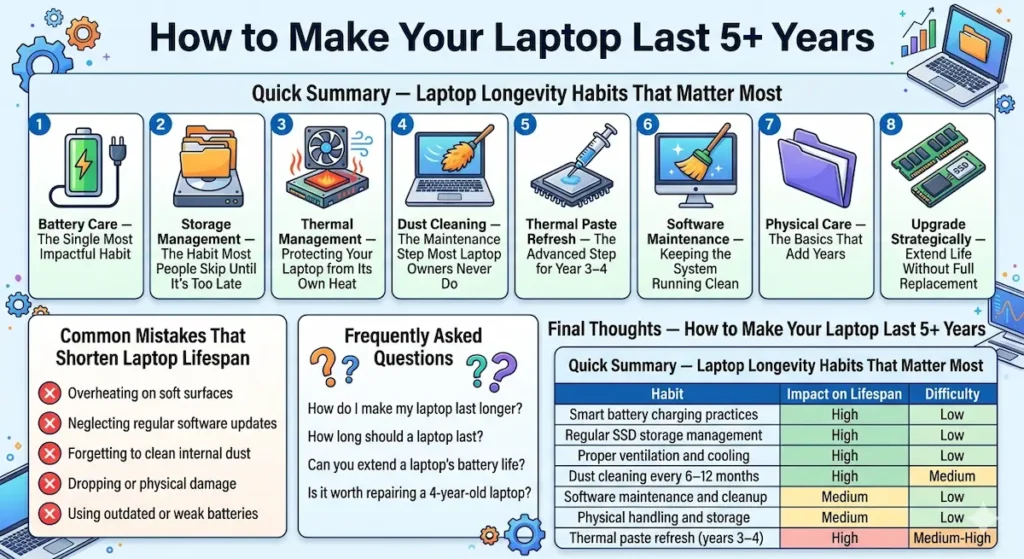
Quick Summary — Laptop Longevity Habits That Matter Most
| Habit | Impact on Lifespan | Difficulty |
|---|---|---|
| Smart battery charging practices | High | Low |
| Regular SSD storage management | High | Low |
| Proper ventilation and cooling | High | Low |
| Dust cleaning every 6–12 months | High | Medium |
| Software maintenance and cleanup | Medium | Low |
| Physical handling and storage | Medium | Low |
| Thermal paste refresh (years 3–4) | High | Medium-High |
1. Battery Care — The Single Most Impactful Habit
If you want to know how to make your laptop last longer, start with the battery. Battery health is the specification that most noticeably degrades over time, and most of that degradation is caused by charging habits that are easy to change.
The 20–80 rule
Lithium-ion batteries — the type in every modern laptop — degrade faster at the extremes of their charge range. Charging from 20% to 80% consistently causes significantly less wear than charging from 0% to 100% repeatedly. Most laptop users in 2026 leave their machine plugged in at 100% constantly or routinely drain it to 0% before charging — both of which accelerate capacity degradation.
Many modern laptops have built-in battery health management settings — Lenovo’s Conservation Mode, ASUS Battery Health Charging, Dell’s custom charge limits — that automate this. Enable whatever your laptop’s native battery management offers. If your machine doesn’t have native options, third-party utilities can accomplish similar results.
Don’t stay plugged in at 100% indefinitely
Leaving your laptop plugged in and fully charged for weeks at a time while you work at a desk generates consistent heat at high charge levels — the worst combination for long-term battery health. If you primarily work at a desk plugged in, set a charge limit between 60–80% so the battery isn’t cycling at full capacity under sustained heat.
Let it breathe during charging
Charging generates heat. Charging in an environment that restricts airflow — under a pillow, in a bag, on a surface that blocks vents — compounds that heat and accelerates both battery and general component wear. Charge on a hard, flat surface that allows full airflow around the chassis.
Following these battery habits is genuinely the highest-impact single change you can make if you’re thinking about how to extend laptop battery life and overall lifespan.
2. Storage Management — The Habit Most People Skip Until It’s Too Late
Your SSD is the component most directly responsible for how your laptop feels to use day to day. And SSD health has a specific, predictable enemy: being perpetually near-full.
Keep your SSD below 75–80% capacity
SSDs slow down measurably when they approach capacity because they need free space for write buffering, wear leveling, and garbage collection — the background processes that keep solid-state storage fast. An SSD that’s 90% full performs noticeably worse than the same SSD at 60% full. Many laptop users experience “my laptop got slow” and blame the hardware when the actual cause is a 92%-full drive.
How to manage storage for laptop longevity:
- Move completed projects, finished semester files, and archived documents to external storage or cloud storage (Google Drive, OneDrive)
- Clear your Downloads folder quarterly — most downloaded files are used once and never again
- Uninstall applications you haven’t opened in three months
- Disable the Windows hibernation file if you never use hibernate mode — it can consume 5–15GB
SSD health monitoring
Use a free utility like CrystalDiskInfo (Windows) or DriveDx (macOS) to monitor your SSD’s health status and estimated remaining lifespan. Modern SSDs have impressive endurance ratings — you’re unlikely to wear out an SSD through normal use in five years — but monitoring for warning signs early prevents data loss surprises.
This aspect of how to make your laptop last 5+ years costs nothing and takes fifteen minutes every few months. The performance benefit is immediate and significant.
3. Thermal Management — Protecting Your Laptop from Its Own Heat
Heat is the primary enemy of long-term laptop health. Processors, memory, battery, and storage all degrade faster under sustained heat. And heat management is something every laptop user directly controls through how and where they use the machine.
Never block your laptop’s vents
Laptop cooling systems depend on airflow through intake vents (usually on the bottom) and exhaust vents (usually on the sides or rear). Using a laptop on a soft surface — a bed, a couch cushion, a carpet — blocks those intake vents and can increase internal temperatures by 10–20°C. Over months and years, this sustained excess heat accelerates thermal wear on every component inside the chassis.
Use your laptop on a hard, flat surface. If you regularly work from a couch or bed, a laptop stand or a solid book under the machine makes a genuine difference in thermal management.
Laptop cooling pads for heavy workloads
If your workload regularly involves sustained heavy processing — gaming, video editing, compilation, data science — a laptop cooling pad is one of the best investments for laptop lifespan extension. Good cooling pads provide active airflow under the chassis and consistently reduce internal temperatures by 5–10°C under heavy load. At $20–$40, they’re among the highest-value accessories for heavy laptop users.
Monitor temperatures
HWMonitor (Windows) and iStatMenus (macOS) let you see your laptop’s internal temperatures. Under normal productivity use, CPU and GPU temperatures should stay below 75–80°C. Sustained temperatures above 85–90°C under regular workloads indicate a cooling problem — usually dust accumulation — that should be addressed.
MacBook Air Discounted Price4. Dust Cleaning — The Maintenance Step Most Laptop Owners Never Do
This is the laptop maintenance tip that makes the most dramatic visible difference when it finally gets done — and the one most laptop owners have never once performed in years of ownership.
Laptop cooling systems work by pulling air through vents, across a heatsink, and out through exhaust. Over months of use, dust accumulates in the heatsink fins and blocks airflow. As airflow decreases, temperatures rise, fans spin faster and louder to compensate, and thermal throttling begins to limit performance.
The laptop that “got slow” or “started running hot” after two years of heavy use is almost always a laptop that’s never been cleaned.
How often to clean your laptop internally:
- Light users (home and office use, rarely travels): every 12–18 months
- Regular users (daily carry, moderate workloads): every 6–12 months
- Heavy users (gaming, video editing, dusty environments): every 3–6 months
How to clean a laptop for longevity:
For basic cleaning, compressed air through the exhaust vent (with the laptop off) removes surface dust without opening the chassis. For thorough cleaning, opening the bottom panel and cleaning the heatsink directly with compressed air provides dramatically better results. Many laptop models have straightforward bottom panel access — two to four screws and panel removal — that makes this accessible to anyone comfortable with basic tools.
If you’re not comfortable opening your laptop, any computer repair shop will clean and retherm a laptop for $30–$60. This is money well spent every two to three years for a machine you depend on.
After a thorough dust cleaning, a laptop that’s been throttling and running hot will immediately improve — lower temperatures, quieter fans, and restored performance. If you haven’t cleaned your laptop and it’s over two years old, this is likely the single highest-impact maintenance action available to you right now.
5. Thermal Paste Refresh — The Advanced Step for Year 3–4
This one goes slightly deeper but explains why many four-year-old laptops feel dramatically better after a service visit that includes this step.
Thermal paste is the material applied between your laptop’s CPU and GPU and the heatsink that covers them. It conducts heat efficiently from the chips to the heatsink. Over time — typically three to four years of regular use — thermal paste dries out, cracks, and loses conductivity. When this happens, heat transfer becomes less efficient and sustained temperatures under load increase noticeably.
Replacing thermal paste on a four-year-old laptop that’s running hotter than it used to is the maintenance step that most dramatically restores performance in aging machines. A computer repair shop handles this for $30–$60 alongside dust cleaning, or you can do it yourself with a $10 tube of quality thermal compound and fifteen minutes.
For anyone wondering how to make a laptop run like new again after three or four years, dust cleaning combined with fresh thermal paste is usually the answer — not hardware replacement.
6. Software Maintenance — Keeping the System Running Clean
Hardware maintenance extends the physical life of your laptop. Software maintenance determines how well that hardware performs day to day.
Regular operating system cleanup
Windows accumulates temporary files, old update packages, and cached data over time. Monthly cleanup using Windows’ built-in Disk Cleanup or Storage Sense, or a trusted third-party tool, prevents storage waste and keeps system processes running efficiently.
Audit your startup programs
Every application you install tends to add itself to your startup programs — the apps that run automatically when Windows boots. After a year of software accumulation, startup programs can double or triple your boot time and keep background processes consuming RAM throughout every session.
On Windows: Task Manager → Startup tab. Disable everything you don’t need running automatically. On macOS: System Settings → General → Login Items. Remove applications that don’t need to start automatically.
This single cleanup step can restore boot time and background RAM availability to near-new levels on a machine that’s been feeling slow.
Best Laptop for Programming Students
Keep software updated — selectively
Operating system security updates should be applied regularly. Driver updates for GPU, audio, and network components should be verified before applying — not all driver updates improve performance, and some introduce new issues. Application updates for your primary productivity tools keep compatibility current without over-updating the system.
Avoid software bloat accumulation
The average laptop user installs and forgets dozens of applications over four years. Regular quarterly audits — uninstalling software you haven’t used in three months — keep the system running clean and prevent the background resource consumption that makes aging laptops feel slower than their hardware warrants.
7. Physical Care — The Basics That Add Years
Physical handling habits are unglamorous but genuinely contribute to making your laptop last longer.
Use a sleeve or case for daily carry
Even premium laptops with machined aluminum chassis develop cosmetic damage and micro-stress from being loose in a bag alongside books, chargers, and other gear. A fitted sleeve adds less than 100 grams and prevents the surface damage and eventual chassis fatigue that accelerates across years of carry.
Handle with dry hands
The oils and moisture from hands accelerate keyboard key deterioration and trackpad surface wear. This sounds minor. Over five years of daily use, the keyboard on a machine handled with consistently clean hands shows meaningfully less wear than one handled carelessly.
Close the lid properly
Opening and closing a laptop by its lid corner rather than the center creates asymmetric stress on the hinge mechanism that compounds over years of daily use. Open from the center. Close gently. The hinge on a well-maintained machine will stay smooth for years longer than one that’s been stressed repeatedly.
Manage the charging cable
The charging port is one of the most common physical failure points on aging laptops — particularly USB-C charging ports that see daily insertion and removal. Plug in with care rather than force. Don’t route cables under the machine or across high-traffic areas where they’ll be pulled at angles. The repair cost for a charging port replacement ranges from $60–$150 — more than the cost of careful habits across years.
8. Upgrade Strategically — Extend Life Without Full Replacement
For laptops that allow hardware upgrades, strategic component upgrades at year two or three can extend functional life by two or more additional years.
RAM upgrade (if upgradeable)
Adding RAM to a machine approaching its memory limits under modern workload demands is the single most impactful performance upgrade available. If your laptop handles 16GB and you’re currently running 8GB, upgrading provides immediate, significant daily performance improvement for standard productivity and student workloads.
SSD upgrade (if upgradeable)
Replacing an aging or nearly-full SSD with a larger, newer model restores both storage headroom and performance. Modern NVMe SSDs are significantly faster than the drives that shipped in laptops three to four years ago. The performance improvement from this upgrade can make a four-year-old laptop feel current again.
What you can’t upgrade
On most modern slim laptops — MacBook Air, Dell XPS 13, many ultra-thin Windows machines — RAM and sometimes storage are soldered and cannot be upgraded. For these machines, buying the right configuration at purchase is the upgrade strategy. For machines with accessible RAM slots and M.2 storage — ThinkPads, many Lenovo and Asus mid-range models — upgrades are practical and cost-effective.
Common Mistakes That Shorten Laptop Lifespan
Leaving it plugged in at 100% all the time. Covered in battery care, but worth restating — this is the single most common cause of premature battery capacity loss.
Never cleaning it internally. A laptop that’s been accumulating dust for three years is not running at its original capability. Cleaning is fast, inexpensive, and one of the most dramatic performance restoration steps available.
Filling the SSD to capacity. Keeping a drive above 80% full creates sustained performance degradation that feels like hardware aging but is actually a maintenance issue.
Using it on soft surfaces constantly. Blocked intake vents mean sustained elevated temperatures. Elevated temperatures mean accelerated wear on every heat-sensitive component inside.
Ignoring warning signs. Unusual fan noise, sustained high temperatures, unexpected shutdowns, and slow boot times are all diagnostic signals — not just normal aging. Addressing them early costs less than addressing them after the damage compounds.
Frequently Asked Questions
How do I make my laptop last longer?
The highest-impact habits for making your laptop last longer are: managing battery charge between 20–80%, keeping SSD storage below 75% full, cleaning dust from the cooling system every 6–12 months, using the laptop on hard surfaces for proper airflow, and refreshing thermal paste at year three to four.
How long should a laptop last?
A well-maintained laptop with adequate original specifications should last five to seven years of regular use. Most laptops that feel obsolete at three to four years are experiencing maintenance-related performance degradation rather than genuine hardware obsolescence.
Can you extend a laptop’s battery life?
Yes — significantly. Smart charging habits (staying between 20–80%), avoiding sustained charging at 100%, enabling native battery health management software, and keeping the machine cool during charging all preserve battery capacity over years of ownership.
Is it worth repairing a 4-year-old laptop?
Usually yes — if the core hardware (processor, motherboard, screen) is functioning. Dust cleaning, thermal paste replacement, RAM upgrade, and SSD upgrade on a well-maintained four-year-old machine typically cost $100–$200 combined and can extend functional life by two or more years. That’s significantly better value than a new $700+ machine for users whose workload doesn’t require new hardware capability.
Final Thoughts — How to Make Your Laptop Last 5+ Years
How to make your laptop last 5+ years comes down to treating the machine like the tool it is — one that benefits from regular maintenance, appropriate operating conditions, and deliberate habits rather than just hoping it survives.
Battery care, storage management, thermal maintenance, and annual cleaning are the four habits that separate five-year laptops from two-year laptops. None of them require technical expertise. Most of them cost nothing. All of them deliver compounding returns across years of ownership.
The best laptop for any student, professional, or everyday user isn’t always the newest one — it’s often the well-maintained one you already have.
About BestLaptopGuide.com: Our editorial team evaluates laptops and publishes maintenance guidance based on real extended daily use — not manufacturer specifications. Recommendations updated regularly.
Disclosure: Some links on this page may be affiliate links. A small commission may be earned at no extra cost to you. This does not influence our content.