Last Updated: May 2026 | Author: Marcus Hale | Reading Time: 12 min
The moment a laptop starts feeling slow, most people assume the hardware is aging out and replacement is inevitable. In my experience, that conclusion is usually premature — and expensive.
A student I know was ready to spend $600 on a new laptop last fall. Her two-year-old machine had gotten so sluggish she was restarting it multiple times during a single study session. We spent forty minutes running through the fixes in this guide. Her machine has been running noticeably faster ever since. She still has the $600.
Most slow laptop problems are software and configuration problems disguised as hardware problems. The machine isn’t dying — it’s buried under two years of accumulated startup programs, a drive that’s 92% full, and a cooling system clogged with dust that’s forcing the processor to throttle itself to avoid overheating.
How to speed up a slow laptop without buying a new one is genuinely possible for most users — and the fixes, ranked by impact, are what this guide covers.
Table of Contents
Why Your Laptop Got Slow — The Actual Reasons
Before getting into fixes, understanding what causes slowdown changes how effectively you address it. When you understand why a laptop slows down over time, you can target the right fix instead of trying everything and hoping something works.
The most common causes of laptop slowdown:
- Startup programs accumulating and consuming RAM from boot
- SSD or HDD filling past 80% capacity, slowing read/write operations
- Dust blocking cooling vents, causing thermal throttling that limits processor speed
- Browser extensions and background apps consuming memory continuously
- Malware or bloatware running hidden background processes
- Windows indexing, update processes, or antivirus scans running during active use
- Outdated or corrupted drivers creating system inefficiency
None of these require new hardware to fix. All of them are addressable with the steps below.
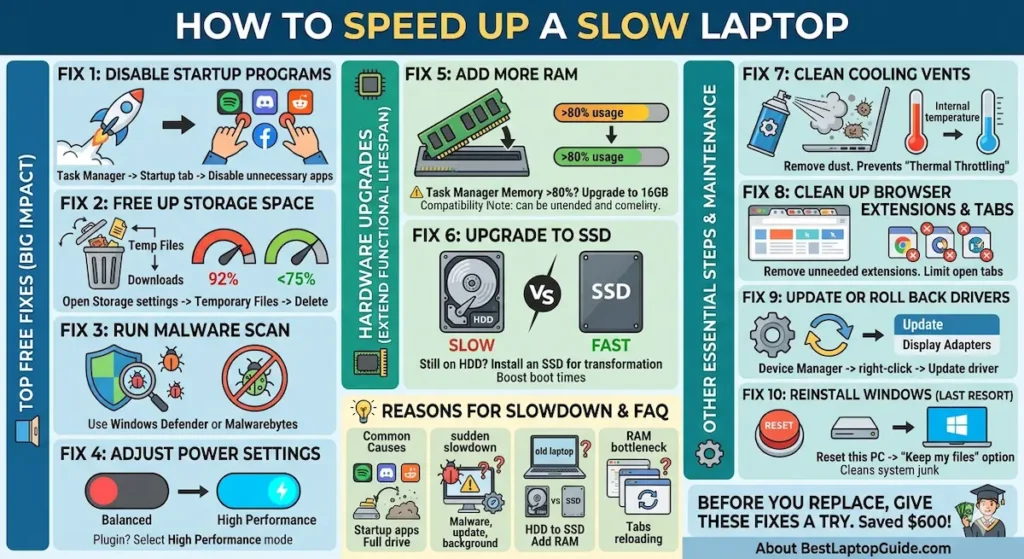
Fix 1 — Disable Startup Programs (Biggest Immediate Impact)
This is consistently the highest-impact way to speed up a slow laptop for free, and it takes five minutes.
Every application you install tends to add itself to your startup list — the programs that launch automatically when Windows boots. After a year of software accumulation, you might have fifteen to twenty programs fighting for RAM and processor time before you’ve opened a single window yourself. The result: slow boot times, sluggish first-hour performance, and background memory consumption that persists all session.
How to disable startup programs on Windows:
- Press Ctrl + Shift + Esc to open Task Manager
- Click the Startup tab
- Look at the Status column — disable everything marked “Enabled” that you don’t need running automatically
- Right-click and select Disable for each
Discord, Spotify, OneDrive, Teams, Adobe Creative Cloud, gaming launchers — these are common culprits that most users don’t need starting at boot. You can still open them manually when needed. Removing them from startup reclaims the RAM and boot time they were consuming every session.
Restart after making changes and compare boot time. Most users see a 30–60 second boot time improvement from this step alone.
Fix 2 — Free Up Storage Space (Especially if SSD is Over 80% Full)
If you want to know how to speed up a slow laptop with a full hard drive, this is the answer.
SSDs and HDDs both slow down significantly as they approach capacity. SSDs specifically need free space for wear leveling, write buffering, and garbage collection — internal processes that keep them fast. An SSD at 92% capacity performs measurably worse than the same drive at 65% capacity. Many users experience “my laptop got slow” and assume hardware aging when the actual cause is a nearly-full drive.
How to free up storage to speed up your laptop:
- Open Settings → System → Storage → Temporary Files. Windows will show you exactly how much space temporary files, update caches, and Recycle Bin contents are consuming. Delete all of it.
- Uninstall applications you haven’t opened in three months. Settings → Apps → sort by size.
- Empty your Downloads folder — most downloaded files are used once and forgotten.
- Move large files (videos, completed projects, old photos) to an external drive or cloud storage.
- Disable the Windows hibernation file if you never use hibernate: open Command Prompt as administrator and type
powercfg /hibernate off— this reclaims 5–15GB depending on your RAM.
Target: get your drive below 75% full. The improvement in system responsiveness is often immediate and significant.
Fix 3 — Run a Malware Scan
Malware and bloatware are underappreciated contributors to laptop slowdown. Malicious background processes consume processor cycles and RAM continuously, without any visible application to blame. If you’ve never run a dedicated malware scan on a machine that’s gotten progressively slower, this is worth doing before assuming hardware causes.
How to scan for malware to speed up a slow laptop:
Windows Defender (built-in) handles most common threats — run a full scan through Windows Security. For more thorough scanning, Malwarebytes free version is a trusted additional tool that catches adware and bloatware that Defender sometimes misses.
If a scan finds and removes significant threats, the performance improvement can be dramatic — not gradual.
Fix 4 — Adjust Power Settings
Windows defaults to Balanced power mode, which throttles processor performance to conserve battery. On a plugged-in desktop replacement or when you need full performance, this setting limits speed unnecessarily.
How to change power settings to speed up a slow laptop:
Control Panel → Power Options → Select High Performance or (on newer Windows) open Settings → System → Power & Sleep → Additional power settings.
Best Laptop Under $800 with OLED Display
High Performance mode keeps the processor running at higher sustained clock speeds rather than scaling down during light tasks. The trade-off is increased power draw and heat — which matters on battery but is irrelevant when plugged into an outlet.
This is a simple switch that makes an immediate, noticeable difference for users who have been unknowingly running at throttled performance.
Fix 5 — Clean the Cooling Vents (The Fix Most People Never Try)
This is the how to speed up a slow laptop fix with the most dramatic visible impact on machines that haven’t been maintained — and the one almost nobody has done.
Here’s what happens: dust accumulates in laptop cooling vents and heatsink fins over months of use. As airflow decreases, internal temperatures rise. When a processor gets too hot, it automatically reduces its own clock speed to prevent damage — this is called thermal throttling. A throttled processor performs at a fraction of its rated speed.
A laptop that runs hot, has a constantly loud fan, and feels slow under moderate workloads is almost certainly being thermally throttled by dust accumulation.
How to clean laptop vents to speed up performance:
Compressed air directed at exhaust vents (with the laptop off) removes surface dust without opening the chassis. Use short bursts, tilt the laptop, and do this outdoors — the dust cloud from a machine that hasn’t been cleaned in two years can be significant.
For a thorough clean: open the bottom panel (usually two to four screws), find the heatsink fins near the fan, and direct compressed air through them. This is the step that makes the real difference on heavily accumulated machines.
After cleaning, compare fan behavior and performance under the same tasks. Machines that were running hot typically show immediate temperature drops of 10–20°C, fans become quieter, and performance under sustained workloads improves noticeably.
Buy Screen WipesFix 6 — Add More RAM (If Your Laptop Supports It)
For laptops with accessible RAM slots — many Lenovo, Asus, Dell, and HP mid-range models — adding RAM is the hardware upgrade with the highest performance-per-dollar ratio for a slow machine.
Signs that RAM is the bottleneck slowing down your laptop:
- Task Manager shows Memory usage consistently above 80% during normal use
- Chrome or Firefox tabs reload frequently when you switch back to them
- The machine slows specifically when multiple applications are running
If you’re running 8GB of RAM on a machine that supports 16GB, this upgrade directly addresses the symptom. RAM prices are reasonable — 16GB SO-DIMM kits typically run $30–$60 — and installation on most accessible laptops takes fifteen minutes.
8GB vs 16GB RAM for Programming
Check your specific laptop model for RAM upgrade compatibility before purchasing. MacBooks, many ultra-thin Windows machines, and some newer models have soldered RAM that cannot be upgraded.
Fix 7 — Upgrade to SSD (If You’re Still Running HDD)
If your slow laptop is still running a traditional hard disk drive — common on budget machines from three to five years ago — upgrading to an SSD is the single most impactful way to speed up an old laptop available.
The performance difference between HDD and SSD storage is not incremental. It’s transformational. Boot times go from sixty to ninety seconds to under fifteen seconds. Applications open before you’ve finished clicking. The machine that felt terminally slow on HDD feels current on SSD.
SSD upgrades for 2.5-inch drive bays (the standard upgrade path for older HDD laptops) cost $40–$80 for a 500GB drive. Adding cloning software (often included free with drive purchase) allows transferring your existing system without reinstalling Windows.
Is 512GB SSD Enough for College Students
This is the how to speed up an old laptop recommendation that makes the biggest real-world difference for machines still running mechanical storage.
Fix 8 — Clean Up Browser Extensions and Tabs
Chrome and Firefox are notorious RAM consumers, and extension accumulation makes this significantly worse. Every active browser extension runs code continuously in the background. Twenty extensions running simultaneously consume hundreds of megabytes of RAM that the rest of your system can’t use.
How to speed up a slow laptop through browser optimization:
- In Chrome: Menu → More Tools → Extensions. Remove extensions you don’t actively use.
- Limit open tabs to what you’re actively working with — each tab holds content in memory.
- Consider switching from Chrome to Firefox or Microsoft Edge if you use Google Chrome heavily — Firefox typically consumes meaningfully less RAM under equivalent tab loads.
This step specifically addresses the “slow while browsing” experience that many users describe as their main slowdown symptom.
Fix 9 — Update or Roll Back Drivers
Outdated graphics, audio, or network drivers create system inefficiencies that show up as general sluggishness, stuttering, or intermittent freezes. A driver update can sometimes resolve slowdowns that appear completely unrelated to the driver in question.
How to update drivers to speed up a slow laptop:
Device Manager → right-click each major device category (Display adapters, Network adapters) → Update driver → Search automatically.
Alternatively, downloading drivers directly from the manufacturer’s support page for your laptop model ensures you’re getting the validated version rather than a generic Windows default.
If recent slowdown coincides with a recent Windows Update or driver update, rolling back the specific driver (Device Manager → Properties → Driver → Roll Back) can restore previous performance if the new driver introduced the problem.
Fix 10 — Reinstall Windows (Last Resort, High Impact)
If every other fix has been applied and the laptop is still significantly slower than it should be, a clean Windows reinstall is the nuclear option that works.
Windows accumulates system junk, corrupted registry entries, and fragmented system files over years of use that no optimization tool fully addresses. A clean reinstall returns the operating system to its original performance baseline — the way the machine ran when you first set it up.
Modern Windows reinstallation preserves personal files if you choose the “Keep my files” option during reset, though reinstalling applications is required. The process takes one to two hours but produces results that no maintenance step short of it can match.
How to reinstall Windows to speed up a slow laptop: Settings → System → Recovery → Reset this PC → Choose “Keep my files” to preserve personal data.
Frequently Asked Questions
How do I speed up a slow laptop for free?
The highest-impact free fixes for how to speed up a slow laptop are: disabling startup programs (Task Manager → Startup tab), freeing storage to below 75% full, running a malware scan, and cleaning dust from cooling vents. Most users see immediate improvement from these four steps alone without spending anything.
Why is my laptop so slow all of a sudden?
Sudden slowdown is usually caused by one of three things: a Windows update running in the background, a malware infection, or a background process (antivirus scan, cloud sync, indexing) consuming resources temporarily. Check Task Manager for which process is consuming CPU or RAM. If nothing specific shows, run a malware scan.
How can I speed up my old laptop without replacing it?
For older laptops on HDD storage: upgrading to SSD is the most impactful single change. For older laptops with 8GB RAM on laptops that support more: adding RAM to 16GB produces significant improvement. Combined with startup program cleanup and vent cleaning, these hardware investments extend functional lifespan by two to three years.
Does adding RAM speed up a laptop?
Yes — specifically when RAM is the bottleneck. If Task Manager shows memory usage consistently above 80% during normal use, adding RAM produces immediate, significant improvement in multitasking, tab handling, and application responsiveness. If RAM usage is already low, adding more won’t produce noticeable speed improvement.
How do I know if my laptop is slow because of software or hardware?
Check Task Manager during slowdown — look at CPU, Memory, and Disk columns. If Disk is at 100%, storage is the bottleneck (SSD upgrade or storage cleanup). If Memory is at 90%+, RAM is the bottleneck. If CPU is at 90%+ with no obvious foreground cause, check for malware or a runaway background process. If temperatures are high (use HWMonitor to check), thermal throttling from dust is the cause.
Final Thoughts
How to speed up a slow laptop without buying a new one isn’t a trick or a temporary fix — it’s understanding that most slowdown is caused by maintenance and configuration issues, not hardware failure.
The sequence that works for most users: disable startup programs first, free up storage second, clean vents third, scan for malware fourth. These four free steps address the majority of slow laptop complaints. If the machine is still slow after that, RAM upgrade or SSD upgrade provides the hardware foundation that lets software run the way it’s supposed to.
Before concluding that a slow laptop needs replacement, give these fixes an honest try. In most cases, the machine that felt ready for retirement starts feeling capable again — and the money stays where it belongs.
About BestLaptopGuide.com: Our editorial team covers laptop maintenance and optimization based on real extended testing — not manufacturer claims. Updated regularly.
Disclosure: Some links on this page may be affiliate links. A small commission may be earned at no extra cost to you. This does not influence our content.