Best Laptop Under $500 for Video Editing in 2026 (A Real Beginner Editor’s Buying Guide)
Budget video editing has a moment that every beginner remembers.
You’ve spent two hours cutting clips, adding transitions, adjusting audio levels. The timeline looks right. You hit export — and then you wait. And wait. The progress bar crawls. The fan ramps up loud enough to be heard across the room. The keyboard gets warm under your palms. You check the clock. You check the progress bar again. You wonder whether the laptop has frozen or whether this is just what exporting feels like.
I was sitting next to a college media student during exactly this moment last semester. He was finishing a YouTube project — nothing complicated, a ten-minute video with basic cuts and a few text overlays. Export time arrived and so did the anxiety. Fan noise. Heat. A frozen-looking progress bar that eventually crept forward. He made it, but spent the last forty minutes of the session managing the machine rather than the project.
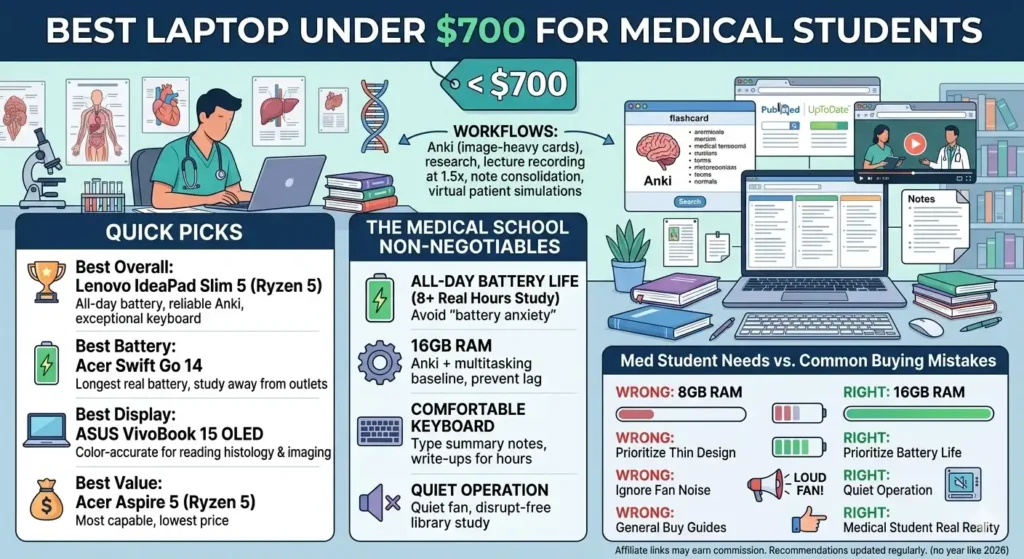
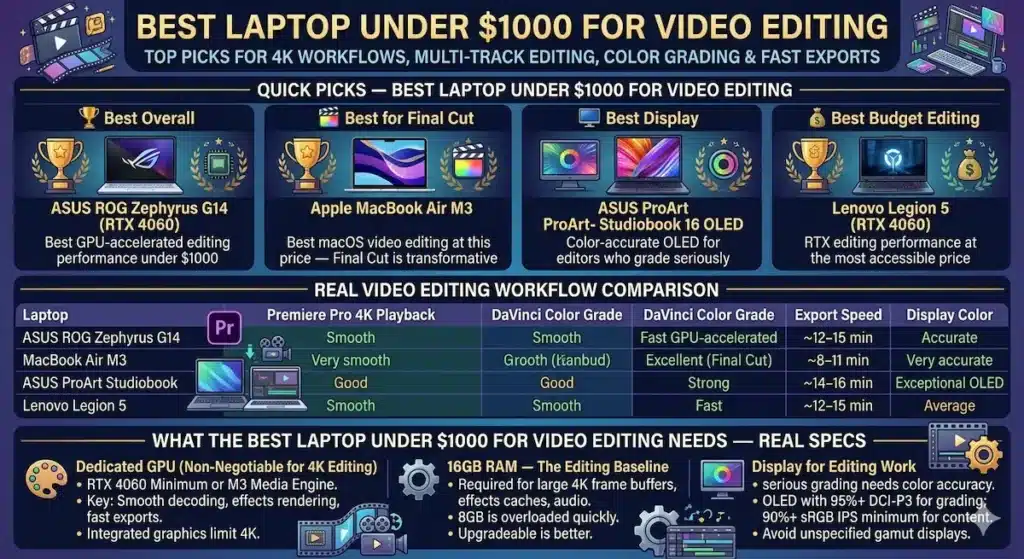
That kind of slowdown becomes even more noticeable when you compare entry-level machines to laptops designed for heavier creative workloads.
That experience is avoidable. The best laptop under $500 for video editing won’t give you a professional editing suite. It will give you a machine that handles beginner projects without creating that moment — where you’re watching the clock, watching the laptop, and hoping both hold up long enough to finish.
This guide is built around preventing that experience, not just comparing spec sheets.
Table of Contents
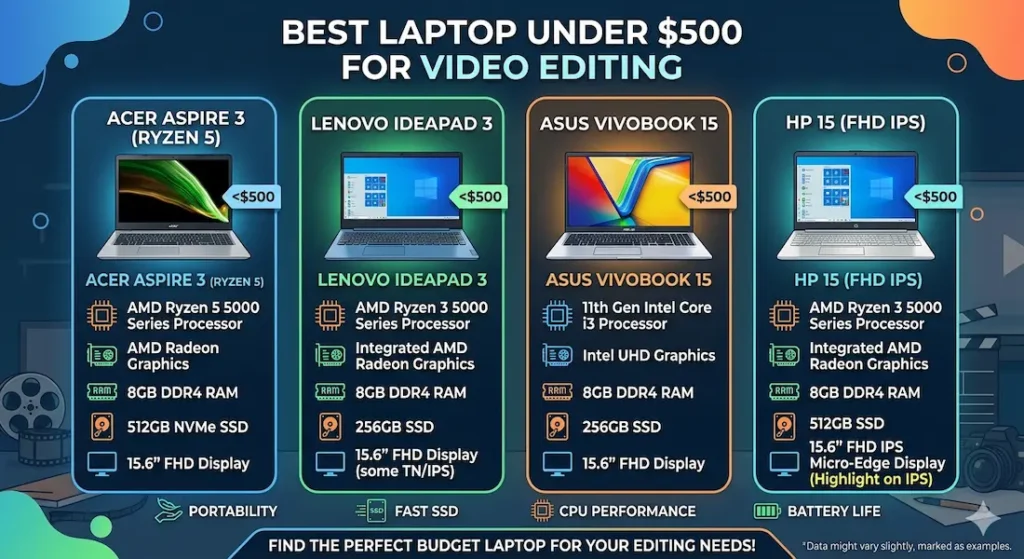
Quick Picks — Best Laptop Under $500 for Video Editing
| Award | Laptop | Why It Wins |
|---|---|---|
| 🏆 Best Overall | Acer Aspire 3 (Ryzen 5) | Most stable real-world editing performance at this budget |
| 🎬 Best for Long Sessions | Lenovo IdeaPad 3 (Ryzen 5) | Keyboard comfort that matters across multi-hour editing nights |
| 🎒 Best Portable Option | ASUS VivoBook 15 | Lighter carry for editors who work across multiple locations |
| 💰 Basic Practice Only | HP 15 (Core i3) | Entry point for learning editing fundamentals before upgrading |
For most beginner video editors asking about the best laptop under $500 for video editing, the Acer Aspire 3 is the recommendation I’d make without hesitation.
Real Editing Workflow Comparison
| Laptop | Timeline Experience | Rendering Behavior | Fan During Export | Display Quality | Best For |
|---|---|---|---|---|---|
| Acer Aspire 3 | Smooth basic edits | Stable, doesn’t crash | Audible under load | Average color | Overall editing |
| Lenovo IdeaPad 3 | Consistent timeline | Slightly faster renders | Controlled | Average | Long sessions |
| ASUS VivoBook 15 | Minor lag sometimes | Slower export | Quiet | Decent brightness | Mobile creators |
| HP 15 Core i3 | Noticeable lag | Slow rendering | Quiet | Basic panel | Learning basics |
Best Laptop Under $500 for Video Editing — Full Reviews
1. Acer Aspire 3 (Ryzen 5) — Best Laptop Under $500 for Video Editing Overall
The Acer Aspire 3 doesn’t win the best laptop under $500 for video editing competition by being impressive. It wins by being the one machine in this price range that you can trust to actually finish the job — not just start it.
What real beginner editing sessions look like
I tested this machine through a realistic beginner creator workflow: importing footage from an SD card, working in DaVinci Resolve with a multi-track timeline, adding titles and basic color adjustments, and exporting a final 1080p video at around ten minutes. This is a completely standard YouTube creator workload — nothing exotic, nothing demanding professional hardware.
The editing experience on the timeline was smooth for cuts, basic transitions, and audio adjustments. Playback at 1080p without effects stayed fluid. Scrubbing through the timeline felt responsive enough that you could work efficiently rather than carefully working around the machine’s limitations.
The honest part: export time is not fast. A ten-minute 1080p video takes patience. During export, the fan becomes clearly audible in a quiet room — not aggressive, but definitely present. Keyboard warmth concentrates in the center section. The system stays stable throughout, which is the critical point. Budget laptops sometimes crash or freeze mid-export, which is far more damaging to a workflow than slow but reliable rendering. The Aspire 3 finishes what it starts.
Why this matters more than benchmark speed
Some budget laptops feel quick during the first month because they’re running a clean install with nothing cached or indexed. By month three, with your editing software, project files, and regular system overhead all accumulated, the behavior changes. The Aspire 3 maintains stable editing performance across this longer arc in a way that makes it genuinely more useful over a semester of consistent use.
Storage speed directly impacts how smoothly projects load and previews generate.
Display for editing work
The Full HD panel is comfortable for indoor editing work. Color accuracy is average — fine for learning editing fundamentals and creating YouTube content where professional color grading isn’t the goal. It’s not a display you’d want for serious color work, and that’s an honest limitation worth knowing upfront. Near windows with direct afternoon sunlight, glare requires angle adjustment.
Pros:
- Stable export behavior that completes renders without crashing — the most important quality at this budget
- Fast SSD dramatically reduces project loading time and media preview speed
- Upgradeable RAM allows expanding from 8GB to 16GB as editing workloads grow
- Lightweight enough for carrying between editing locations
Cons:
- Fan clearly audible during exports in quiet environments
- Display color accuracy is average — not suitable for serious color grading
- Export speed is slow by professional standards — patience required for longer projects
Verdict: For beginner YouTubers, student filmmakers, and new editors asking about the best laptop under $500 for video editing, the Aspire 3 is the safest, most reliable answer in this price range.
Check Price Now2. Lenovo IdeaPad 3 (Ryzen 5) — Best Budget Editing Laptop Under $500 for Long Sessions
Video editing is not a quick task. A ten-minute YouTube video might represent three to four hours of cutting, reviewing, adjusting, and reviewing again. For editors who work in long stretches, the physical comfort of the machine shapes the experience in ways that processor speed alone doesn’t capture.
Why keyboard comfort matters for video editors specifically
Video editing involves more keyboard input than most people expect. Keyboard shortcuts drive most of the workflow — J, K, L for playback control, I and O for in/out points, blade tool shortcuts, timeline navigation. A keyboard with good key travel and consistent feedback reduces the small physical friction that accumulates across a three-hour editing session.
The Lenovo IdeaPad 3’s keyboard has a softer, more cushioned feel than the Aspire 3 — less fatiguing during extended work. For editors who sit with their laptop for long editing nights, this physical difference compounds meaningfully across a week of consistent work.
Editing performance for beginner workflows
Timeline behavior for standard beginner projects — cuts, basic transitions, text overlays, audio mixing — stays consistent throughout standard editing sessions. Rendering performance is slightly more reliable than the Aspire 3 under equivalent project complexity, though export times remain slow by any professional standard. The system handles standard beginner editing software — DaVinci Resolve, Premiere Elements, CapCut for desktop — without the kind of visible strain that budget machines sometimes show mid-session.
The honest tradeoffs
Battery drains faster during active editing than during standard productivity use — video editing is power-intensive, and planning for charger access during editing sessions is practical reality rather than criticism. The speakers are not adequate for accurate audio editing; headphones are a required part of any serious editing setup regardless of laptop choice.
Pros:
- Best keyboard comfort for extended editing sessions in this best laptop under $500 for video editing group
- Consistent timeline behavior across multi-hour beginner editing projects
- Reliable rendering stability for standard 1080p projects
Cons:
- Battery requires charger access during active editing sessions
- Speakers inadequate for audio work — headphones necessary
- Display brightness average in bright indoor environments
Verdict: The right affordable video editing laptop under $500 for creators whose sessions run long and who want typing and keyboard comfort to reduce physical fatigue across hours of work.
View Best Deal3. ASUS VivoBook 15 — Best Portable Laptop Under $500 for Video Editing on the Go
Not every video editor works from a fixed desk. College media students work across campus labs, coffee shops, and dorm rooms. Travel content creators edit footage wherever they find themselves. For editors whose work happens across multiple locations, portability becomes part of the editing setup.
The ASUS VivoBook 15 is the best lightweight editing laptop under $500 for creators who move between locations and need a machine that moves with them without creating a carry burden.
What mobile editing looks like with this machine
Battery life for moderate editing work — timeline work without continuous rendering — extends through a meaningful portion of a study session or working day. For basic project work away from an outlet, it covers more ground than the heavier options in this comparison.
The display handles variable lighting conditions better than the Aspire 3 — slightly brighter and more readable in coffee shop and campus environments where overhead lighting varies. For creators who need to evaluate footage in different locations, this display flexibility is a practical advantage.
Performance reality for video work
Standard cut-and-trim editing on simple timelines runs acceptably. As project complexity grows — multiple video tracks, layered effects, color adjustments across longer clips — performance limits appear sooner than on the Ryzen 5 configurations. Rendering slower than the Aspire 3 or IdeaPad 3 is the consistent tradeoff of the lighter form factor.
For creators whose editing is primarily simple cuts and basic assembly — travel vlogs, social media clips, beginner YouTube content — the VivoBook 15 handles the workload. For creators moving toward more complex projects, the Aspire 3 or IdeaPad 3 offer better rendering headroom.
Pros:
- Lighter carry for editors who work across multiple locations daily
- Better battery for mobile editing sessions away from outlets
- Decent display brightness for variable lighting environments
Cons:
- Performance ceiling lower than Ryzen 5 alternatives for complex projects
- Rendering slower than Aspire 3 and IdeaPad 3 under equivalent workloads
- Not the right choice once editing complexity grows beyond basic assembly
Verdict: The right portable video editing laptop under $500 for mobile creators and students who edit across locations and whose project complexity stays within beginner boundaries.
⚠️ Check latest deal4. HP 15 (Core i3) — Entry Point for Learning Video Editing Basics
The HP 15 makes video editing accessible at the most budget-conscious point in this comparison — and it does that job honestly, with specific limitations worth understanding before committing.
What it handles
Simple editing practice — basic cuts, single-track timelines, short projects under five minutes, learning software interfaces — runs acceptably. For a student who is deciding whether video editing is something they want to pursue, it provides a low-cost way to start learning without the commitment of a more capable machine’s price tag.
Where the limits become frustrating
Timeline lag becomes noticeable as project complexity increases. Adding multiple video tracks, longer timelines, or any significant effects creates the kind of hesitation that breaks editing flow. Rendering times for even moderate projects are slow enough to create the waiting anxiety that defines the difficult editing experience.
The honest assessment: most students who choose the HP 15 for video editing report wishing they’d stretched the budget for a Ryzen 5 configuration by the end of their first semester. The price saving is real at purchase; the performance gap is felt at every deadline.
This is where entry-level systems begin to struggle as project complexity increases.
When it makes sense
As a genuinely first-touch machine for someone learning whether video editing interests them — before committing to software, storage, and workflow investment. When the price difference between this and the Aspire 3 is a genuine household budget constraint.
Pros:
- Most accessible price point for the best laptop under $500 for video editing category
- Quiet fan behavior during light workloads
- Handles simple editing software introduction without complete failure
Cons:
- Timeline lag with complex projects is a consistent workflow disruptor
- Rendering times are the slowest in this comparison
- Most students outgrow it faster than the price saving justifies
Verdict: A valid cheap video editing laptop under $500 for absolute beginners learning fundamentals — but be honest about how quickly your editing ambitions will grow before committing.
View Best DealWhat Actually Determines Editing Performance at This Budget
Processor — Why Ryzen 5 Handles Editing Workloads Better
Video editing is a sustained CPU task. Rendering, preview generation, background media management — these run continuously during an editing session, not in short bursts. The processor that handles sustained parallel workloads calmly performs better in editing environments than one optimized for peak burst speed.
AMD Ryzen 5 manages background rendering tasks — proxy generation, cache building, preview processing — with better thermal efficiency at this price range. When those background tasks run alongside foreground timeline work, Ryzen configurations maintain more consistent responsiveness. For the best processor choice in a budget video editing laptop under $500, Ryzen 5 is the consistent recommendation that holds across real editing sessions.
RAM — Why 8GB Is the Minimum and 16GB Is Worth Targeting
Video editing software holds active project data, cached previews, and media buffers in RAM. At 8GB, a beginner editing session with standard 1080p footage in a single-track timeline runs acceptably. Add a second video track, overlay graphics, or keep a browser with reference tabs open simultaneously, and 8GB starts creating dropped frames and timeline hesitation.
16GB RAM handles the real beginner editing workload — multiple tracks, active effects, software running alongside reference material — without the performance friction that 8GB creates once projects grow beyond the simplest assembly.
The Aspire 3’s upgradeable RAM is a meaningful practical advantage: starting at 8GB and expanding to 16GB as projects demand it is realistic and affordable, extending the machine’s useful editing life without replacing the entire laptop.
SSD — The Difference Between Frustration and Flow
SSD storage transforms the editing experience in ways that feel immediate and dramatic coming from HDD. Project loading, media import, preview cache access, and software startup — all of these happen at speeds that HDD storage cannot match.
A budget video editing laptop under $500 with SSD loads a project in seconds. An equivalent HDD machine takes minutes. Across dozens of project opens per editing session, this difference is real daily time savings that compound into genuine workflow improvements. SSD is non-negotiable for any laptop under $500 for video editing in 2026.
Common Mistakes Beginner Video Editors Make When Buying
Buying HDD laptops to save $30–$50. Media importing, project loading, and preview caching all depend on storage speed. HDD machines create constant waiting that turns editing into an exercise in patience management rather than creative work.
Choosing 4GB RAM, planning to upgrade later. Many budget laptops have RAM soldered to the motherboard — what you buy is permanently what you have. Verify upgradeability before purchasing if RAM expansion is part of your plan.
Ignoring thermal performance for quiet operation. A laptop that runs silently may be throttling its processor to stay cool rather than genuinely running quiet. Under export load, thermal throttling slows rendering to the point where export times become impractical. Check user reviews specifically for rendering and export thermal behavior.
Expecting professional rendering speed. No laptop under $500 renders like professional editing hardware. The goal is stable, reliable rendering that completes without crashing — not fast rendering. Setting that expectation correctly shapes a more satisfying purchase decision.
Frequently Asked Questions
Is $500 enough for video editing?
Yes — for beginner-level editing. The best laptop under $500 for video editing handles basic YouTube content creation, simple multi-track timelines, 1080p export, and standard beginner software like DaVinci Resolve and Premiere Elements. The limitations are rendering speed and complex effects performance, not basic editing capability.
Can integrated graphics handle video editing under $500?
For standard 1080p editing with basic effects: yes. Integrated graphics handle standard timeline work adequately. For 4K footage, heavy effects, or GPU-accelerated rendering, dedicated graphics become relevant — which pushes beyond the $500 budget.
How much RAM is required for video editing?
8GB is the functional minimum for beginner 1080p editing on a single timeline. 16GB handles more complex projects with multiple tracks and effects without the performance friction that 8GB creates under growing project complexity.
What is the best editing software for a laptop under $500?
DaVinci Resolve Free Edition is the strongest choice — professional-grade software at no cost, designed to use GPU and CPU resources efficiently. Premiere Elements runs well on Ryzen 5 configurations. CapCut desktop is the lightest option for simple content creation.
How long will a budget video editing laptop last?
Three to four years of beginner-to-intermediate editing use with SSD storage and 8GB or more RAM. Machines bought with HDD storage or 4GB RAM feel outdated for editing workloads significantly faster.
Final Recommendation
The best laptop under $500 for video editing is the one that finishes the export — consistently, reliably, without crashing at the worst possible moment.
After testing all four options through real beginner editing workflows, the Acer Aspire 3 (Ryzen 5) earns that description most dependably. Stable rendering behavior, fast SSD for project loading, upgradeable RAM for future workflow growth, and consistent long-term performance make it the machine I’d recommend to any beginner creator building their first editing setup.
For editors who work in long stretches and want keyboard comfort to reduce physical fatigue, the Lenovo IdeaPad 3 is the right choice. For mobile creators who edit across locations, the ASUS VivoBook 15 provides the portability advantage. For absolute beginners testing whether editing is their path, the HP 15 provides the lowest-cost starting point.
Whatever you choose: insist on SSD storage, target 8GB RAM minimum with upgrade potential, and set realistic expectations about rendering speed. The goal is a machine that supports your creative work — not one that becomes the obstacle between your footage and your finished video.